In this article, we will go through the full cycle of setting up rotating residential proxies. We are talking not only about adding them to a device, but also about the initial setup after purchase for further use. The thing is that many people have difficulties with setting up rotating proxies, since unlike regular proxies, there are a lot of settings here that can confuse users, especially beginners.
What are rotating residential proxies?
These are proxies with a dynamic IP address, and the IP addresses belong to real people. Such proxies are considered the most anonymous and handle bypassing blocks and anti-spam systems very well, since they disguise themselves as a real user. To better understand what rotating residential proxies are, let’s break it down word by word:
-
Rotating - means that the IP address will constantly change within one proxy (endpoint). This can happen at different time intervals (per each request, every 5 minutes, 30 minutes, one hour, or the IP will remain fixed for as long as possible, but usually no more than 24 hours).
-
Residential - means that the IP address belongs to real people. In simple terms, a user installs an app on their phone or laptop, in the agreement of which it is stated that they allow sharing part of their internet. Then this app resells the traffic to a proxy provider, and the proxy provider resells it to you.
Is this legal? Yes, completely legal, since this is прописано in the terms of use of the application (mostly this is implemented in free apps). -
Proxy - these are proxy servers under the control of proxy providers, who are engaged in administration and monitoring so that everything works correctly for you.
By combining these three words, we get that rotating residential proxies are proxies that have a dynamic IP address that constantly changes, and the IP addresses belong to real people, which are considered more anonymous than regular datacenter proxies.
Where to get rotating residential proxies?
Proxies are purchased from proxy providers. Although the topic of this article implies that you already have proxies and you only need to configure them, if you do not yet have rotating residential proxies, you can ознакомиться with our proxy providers rating by selecting in the filter "Residential proxies" and subtype "Rotating residential proxies" or use our профильной article: Best rotating residential proxies providers.
Initial setup of rotating proxies
Let’s move from words to action. When you bought rotating residential proxies, you can see a huge list of settings and this is very different from buying regular static proxies where you are given ready-made data for using proxies.
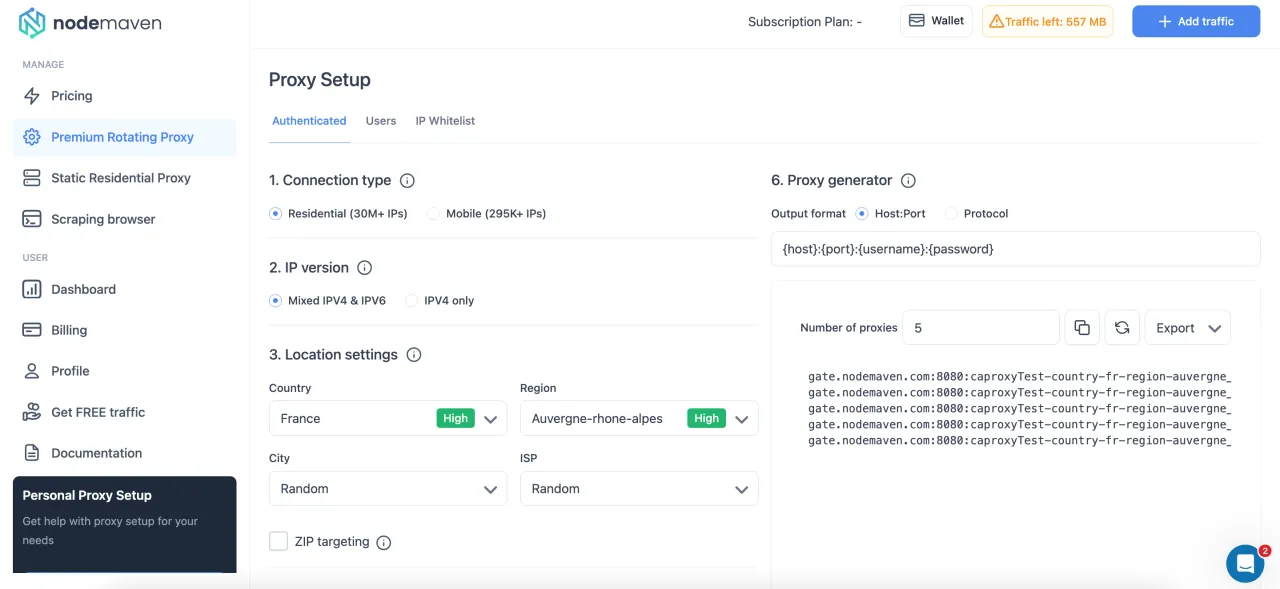
To demonstrate the setup of rotating proxies, for example we will use the proxy provider NodeMaven, since in our opinion they have the best residential proxies, as well as the largest number of settings, to clearly demonstrate what settings exist.
Step 1. Setting proxy type (optional)
We will say right away, not all proxy providers divide their proxies into "Residential" and "Mobile", so if you do not see this point, do not worry. Some proxy providers offer both types, some sell them as separate services, and others provide only residential proxies.

What does it mean? You can choose which IP addresses will be available to you, residential are IP addresses of home providers, and mobile are IP addresses of mobile providers. In short, mobile IP addresses are less subject to blocking, but they are slower and have a smaller pool of IP addresses, and residential proxies have a huge pool of IP addresses, but can more often fall under anti-spam systems.
Which to choose? Here you need to find a balance depending on what purposes you need proxies for and whether you need to disguise as a mobile user. For example, if you are engaged in web scraping in large volumes, then residential proxies are better, and if in small volumes on sites with a strong anti-bot system, then mobile proxies are better. If you need to disguise as a mobile user, then mobile proxies.
Step 2. Choosing protocol version (optional)
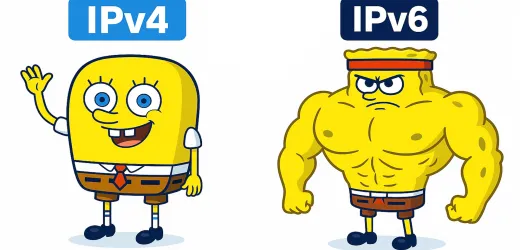
When setting up proxies, you can choose IPv4 or mixed protocols IPv6 and IPv4. Not all proxy providers have the ability to filter by protocol version, so if you do not see this option, skip it.

What does it mean? IPv6 and IPv4 are versions of the protocol by which the IP address is displayed. IPv4 is for example 192.0.2.1, and IPv6 is 2001:0db8:85a3:0000:0000:8a2e:0370:7334. The catch is that not everyone can support IPv6 addresses, although today all modern sites support IPv6 and there should be no problems with this.
Which to choose? If you are not sure that target sites support IPv6, then choose only IPv4, but keep in mind that the IP pool will be smaller. In all other cases, choose mixed IPv6 and IPv4.
Step 3. Choosing proxy geolocation
One of the key points of rotating proxies is the ability to configure detailed targeting by country, region, city or even a specific internet provider. If this is not important to you, just leave the item "Random" and then the system will give you IP addresses from all over the world.
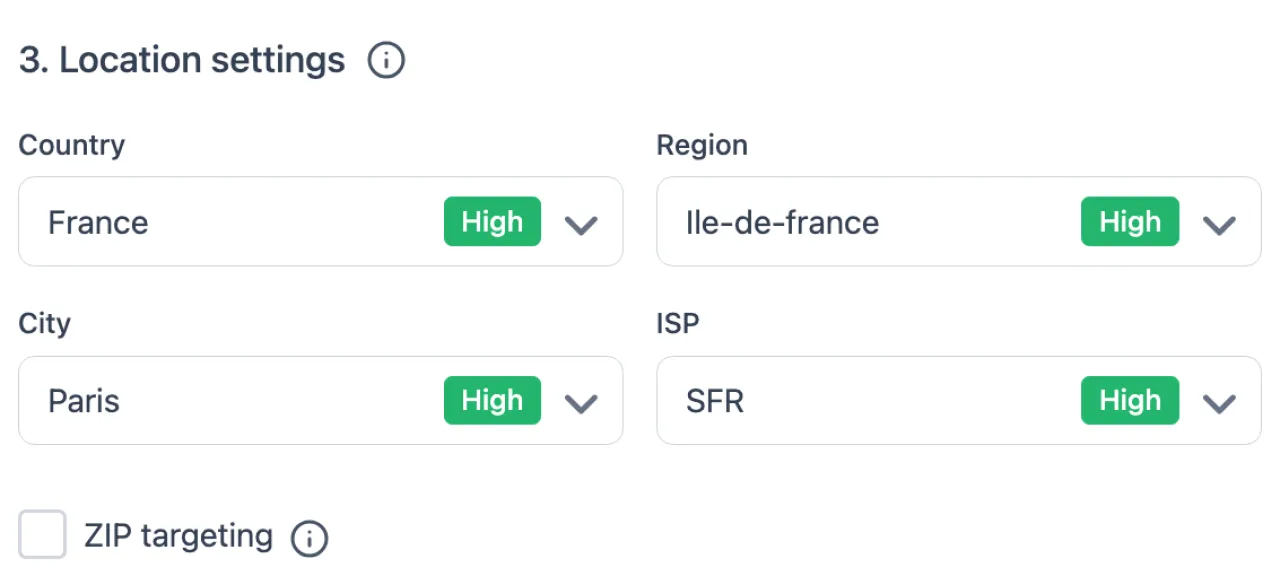
What does it mean? Targeting allows you to configure proxies to disguise as a user from a specific country or even city. For example, we need to check search results of a local restaurant in France in Paris, then we can choose proxies with IP addresses of Paris. That is, rotating residential proxies provide a unique opportunity for detailed targeting to disguise as users from a specific country, region or city.
What to choose? Everything depends on your goals. For local tasks, targeting settings are needed, and for example for global web scraping, this is not necessary.
Step 4. Session type
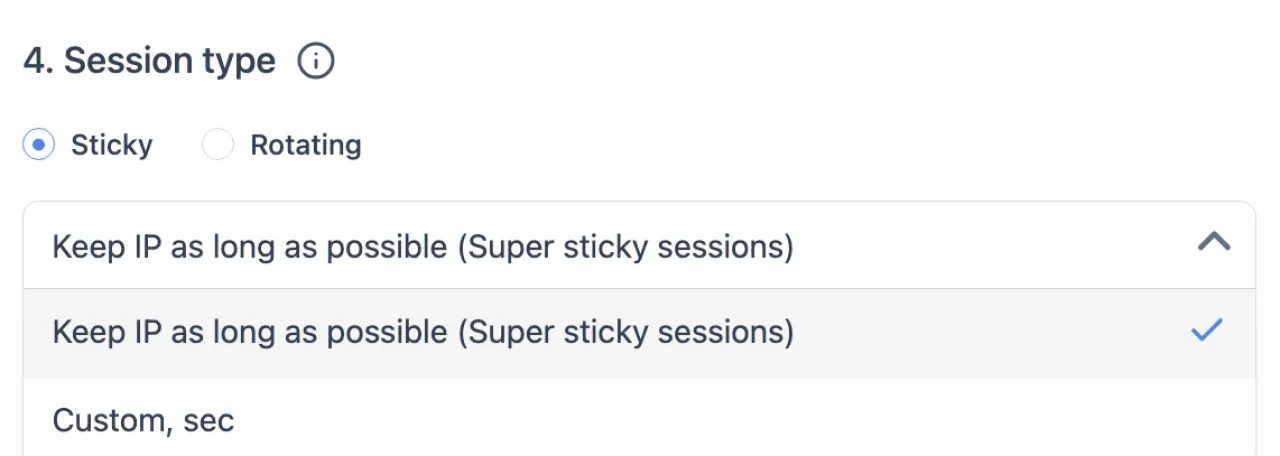
With the help of session type we can specify how long the IP address assigned to a specific proxy will be displayed.
-
Sticky session. Means that the IP address will remain unchanged as long as possible. Useful when you perform many actions in a short period of time during one session. This can be automation (authorization, working with forms), multi-accounting, multi-step web scraping, etc. In simple words, it is important for you that the IP address is static as long as possible, usually the IP address holds on average 12 hours and maximum up to 24 hours.
-
Changing IP address per each request. Means that each request that goes through the proxy will be with a new IP address. Usually used for mass web scraping or for other purposes where it is not important to maintain a session, but it is important to be максимально anonymous.
-
Changing IP address after a certain period of time. Here you can already specify yourself how often the IP address will change. For example, you can specify that the IP address should change every hour or every 2 hours. Can be used, for example, for automated account farming.
Step 5. Choosing the protocol: HTTP(S) or SOCKS5
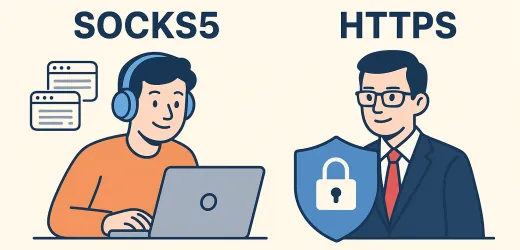
All proxy providers offer two protocols to choose from: HTTP(S) and SOCKS5. If you are not sure which one to choose, go with SOCKS5. If you plan to work only with websites, HTTP(S) may be a better option.

Step 6. Choosing the authentication method
All proxy providers support authentication using a username and password. Many also allow you to authorize by adding your IP address or your server’s IP to a whitelist. In most cases, username and password are the standard choice, but you can pick whatever works best for you.
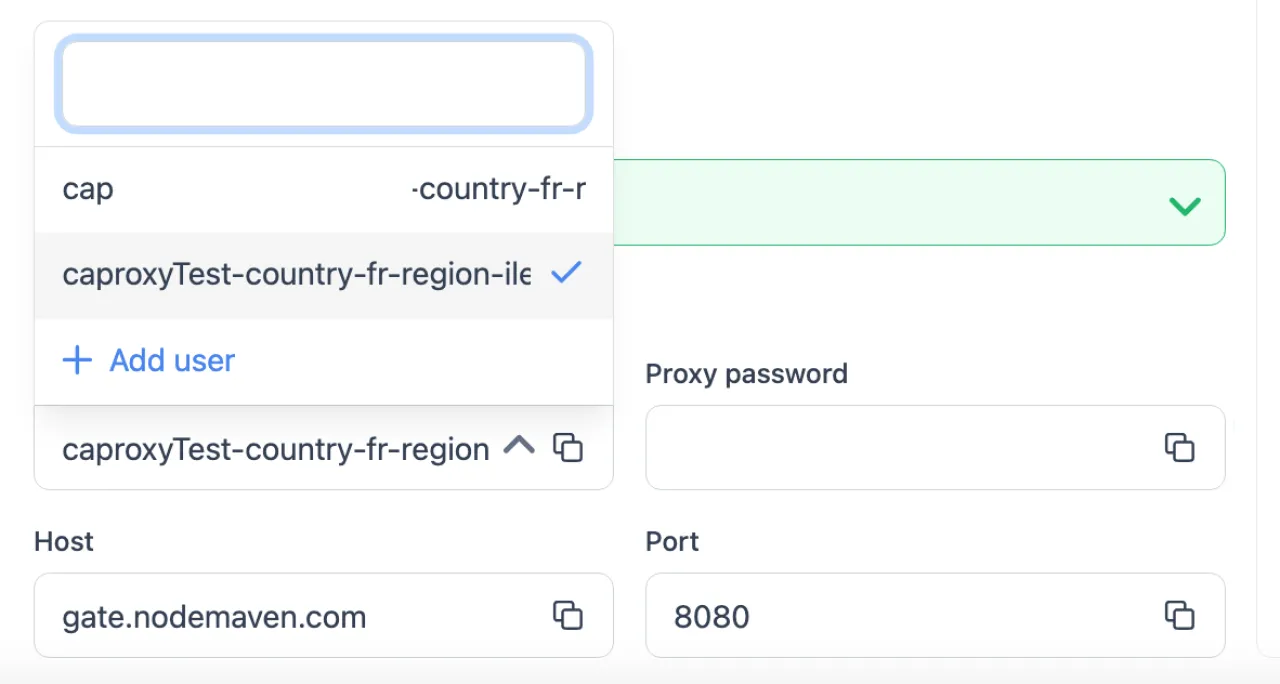
Some providers also let you create separate user profiles to control traffic usage. This is especially useful for teams or when working on multiple tasks. In NodeMaven, for example, you can create multiple users, which is very convenient.
Step 7. Additional settings
There are also extra settings that may not be available with every provider:
-
Name of the list. This allows you to save your configuration.
-
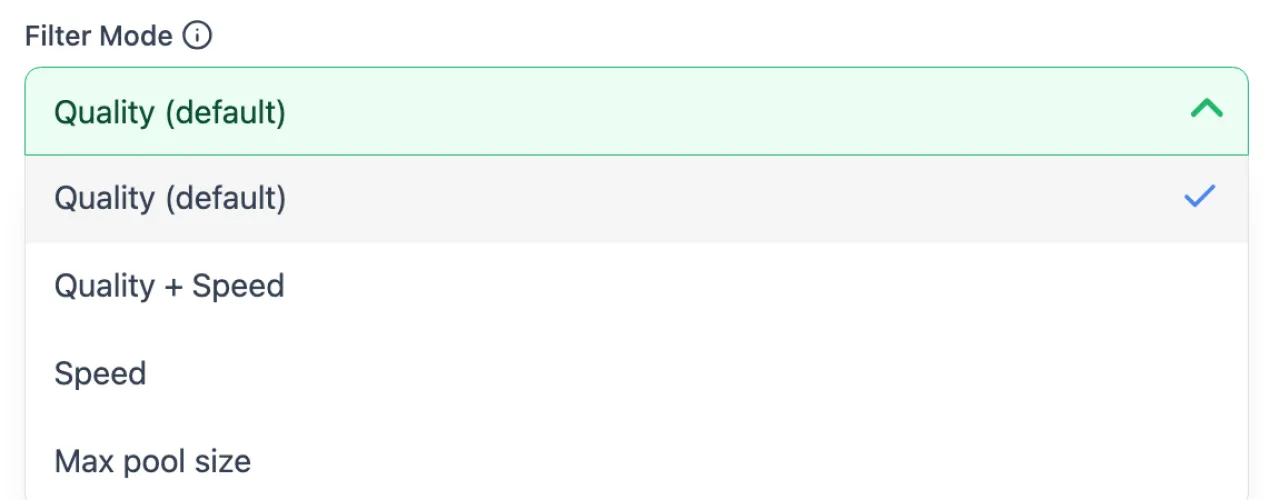
Proxy quality selection. For example, in NodeMaven you can choose whether proxy quality or speed is more important to you. If quality is the priority, their algorithm will check the IP address before assigning it to you, but this slightly slows down the proxies. If speed is the priority, some IP addresses may occasionally not work.
-
Export format. Some providers generate proxies immediately, while others do it after saving a list. In some cases, you can export proxies as a file or a link.
Step 8. Number of proxies (endpoints)
Here you specify how many proxies (endpoints) you want to generate. For example, in NodeMaven, you can generate 20,000 proxies, copy them, then regenerate and get another 20,000 proxies. This means that all these proxies will work independently, each will have a different IP address, and within each proxy the IP address will rotate.
This is the main advantage of rotating residential proxies, since you can work with a huge pool of IP addresses and configure an unlimited number of proxy endpoints.
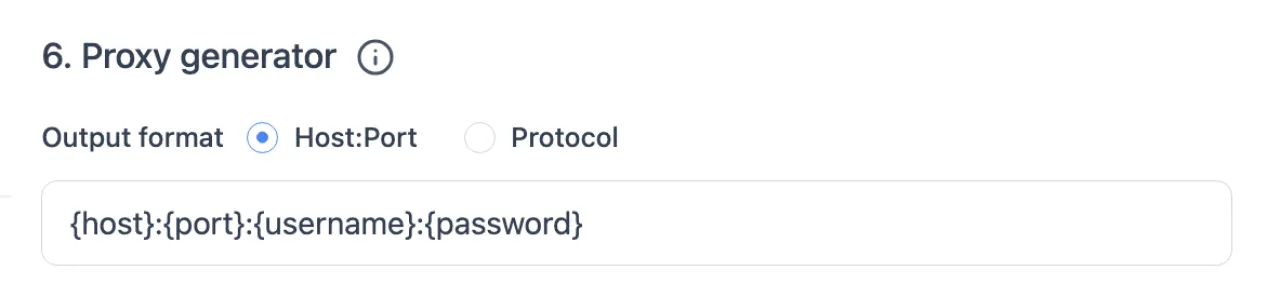
Step 9. Proxy output format
Here you select the format depending on what your system supports. Common formats include:
- {host}:{port}:{username}:{password}
- {host}:{port}@{username}:{password}
- {username}:{password}:{host}:{port}
- {username}@{password}:{host}:{port}
You may also see formats with a protocol included, for example: socks5://{username}:{password}@{host}:{port}
Step 10. Getting the proxy list + lifehack
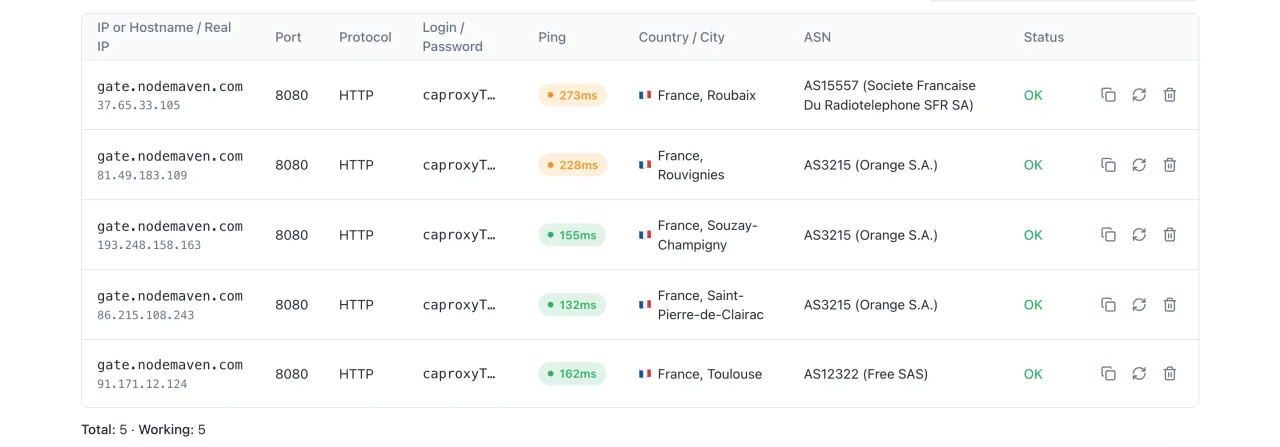
Your rotating proxies are now ready to use. Here is an example with French IPs where the IP changes on every request:
- gate.nodemaven.com:8080:caproxyTest-country-fr-sid-d82225db730d4-filter-medium:YourPassword
- gate.nodemaven.com:8080:caproxyTest-country-fr-sid-29c52c0b95304-filter-medium:YourPassword
- gate.nodemaven.com:8080:caproxyTest-country-fr-sid-79143074a6e54-filter-medium:YourPassword
- gate.nodemaven.com:8080:caproxyTest-country-fr-sid-eaaed64b771c4-filter-medium:YourPassword
- gate.nodemaven.com:8080:caproxyTest-country-fr-sid-fdf1807992244-filter-medium:YourPassword
If you check them using our free proxy checker, everything works correctly and shows French IPs.
Quick tip. If you need to change a parameter, you do not have to regenerate proxies. For example, to switch from France to Germany, just replace "fr" with "de".
-
Before: gate.nodemaven.com:8080:caproxyTest-country-fr-sid-d82225db730d4-filter-medium:YourPassword
-
After: gate.nodemaven.com:8080:caproxyTest-country-de-sid-d82225db730d4-filter-medium:YourPassword
Now you have German IPs. This works because the parameters are embedded in the string. Changing them updates the behavior.
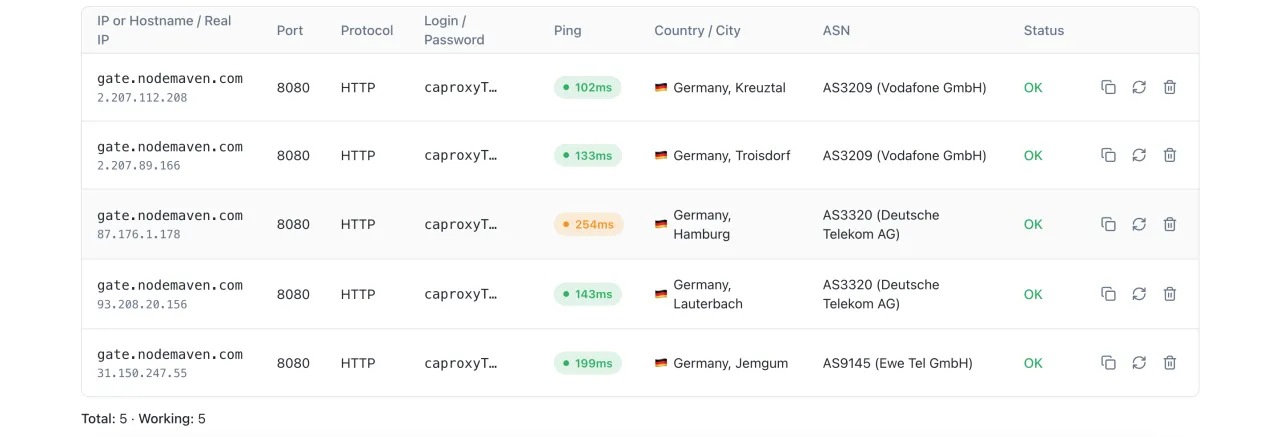
This approach is faster for small changes, especially when switching countries.
Important: This may not work with every provider, so test it first.
Practical use of rotating proxies
Great, now we understand how to set up rotating residential proxies, but the next question is how to use them and where to add them. In practice, they are added just like regular proxies, since we have all the necessary details to configure them:
- Host: gate.nodemaven.com
- Port: 8080
- Username: caproxyTest-country-fr-sid-d82225db730d4-filter-medium
- Password: YourPassword
Your actual credentials will be provided by your proxy service.
Example 1. Adding to an anti-detect browser
We will use the Dolphy anti-detect browser as an example. It is one of the most convenient tools we have used. Go to the "Proxies" tab, click "Add proxy", select the protocol, and paste your proxy details.
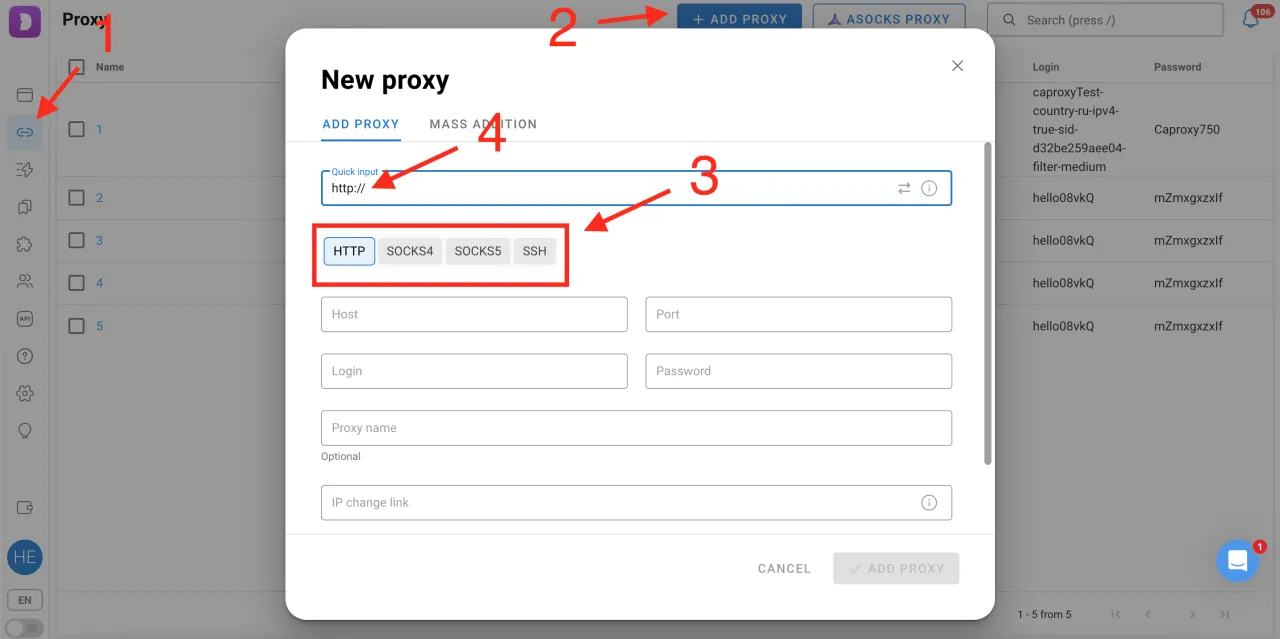
The system will confirm that the proxies are working.

You can also use bulk import to add many proxies at once. After adding the proxies, you can move on to creating a profile and continue working through the anti-detect browser. However, since this article focuses specifically on adding proxies, we will move on to the next example.
Example 2. Connecting proxies on a MacBook
To add proxies on macOS:
- Open Settings and go to Network.
- Select Wi-Fi and click Advanced.
- Open the Proxies tab.
- Choose a protocol.
- Enter proxy details and click OK.
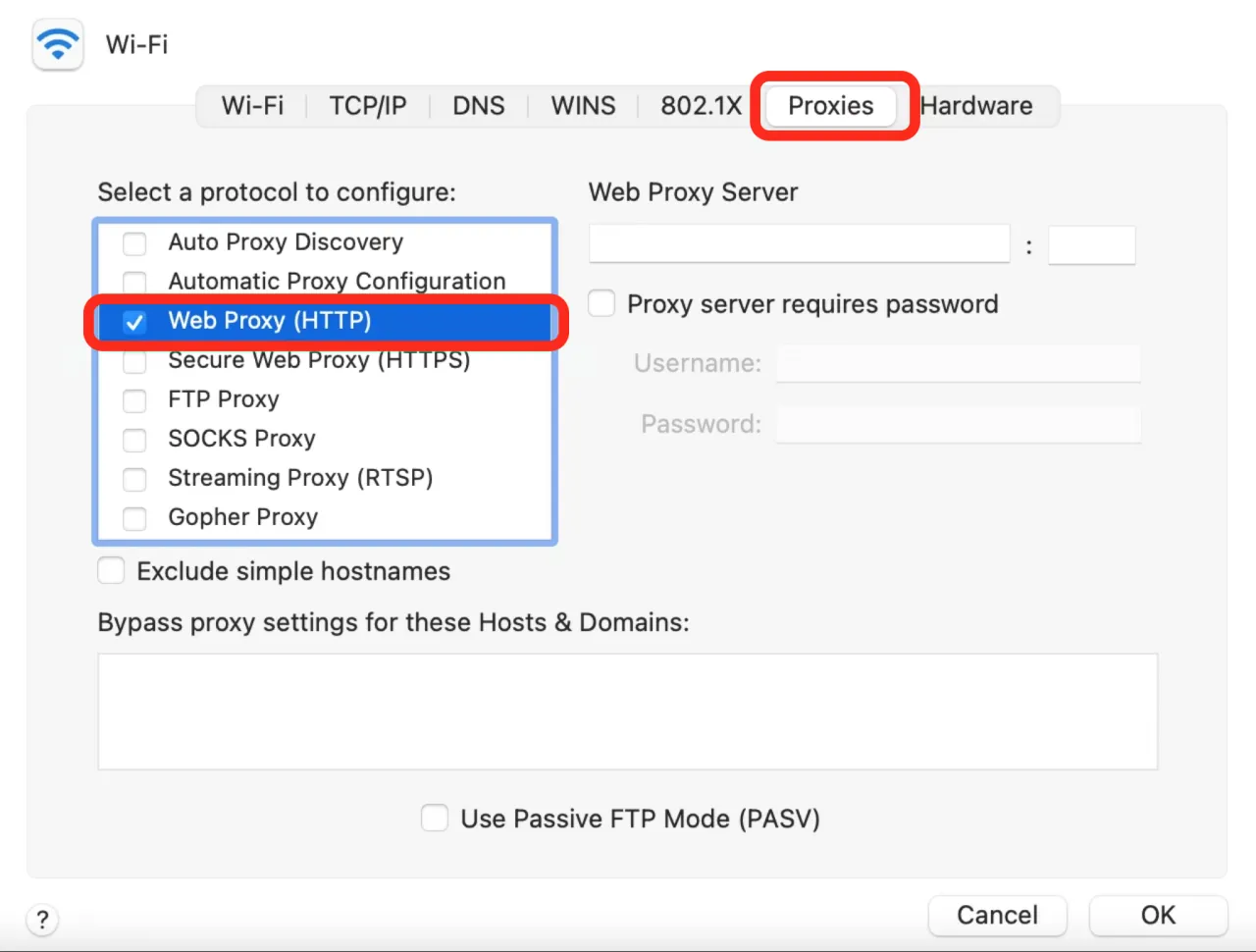
In general, proxies are added to other devices with different operating systems in the same way. That is, you simply find the proxy section in your Wi-Fi settings and add them there. We will not go into adding proxies on Windows, iOS, or Android, since rotating residential proxies are usually not used on personal devices and this is not particularly relevant.
Rotating residential proxies are typically used in professional workflows for web scraping in specialized software or through anti-detect browsers, as well as in custom-built applications or other programs and frameworks designed for automation.
Example 3. Using proxies in code
We can share a small part of the code from another project, where a function takes a list of generated proxies and uses them when visiting a target website. If it fails to establish a connection, it switches to the next proxy from the list.
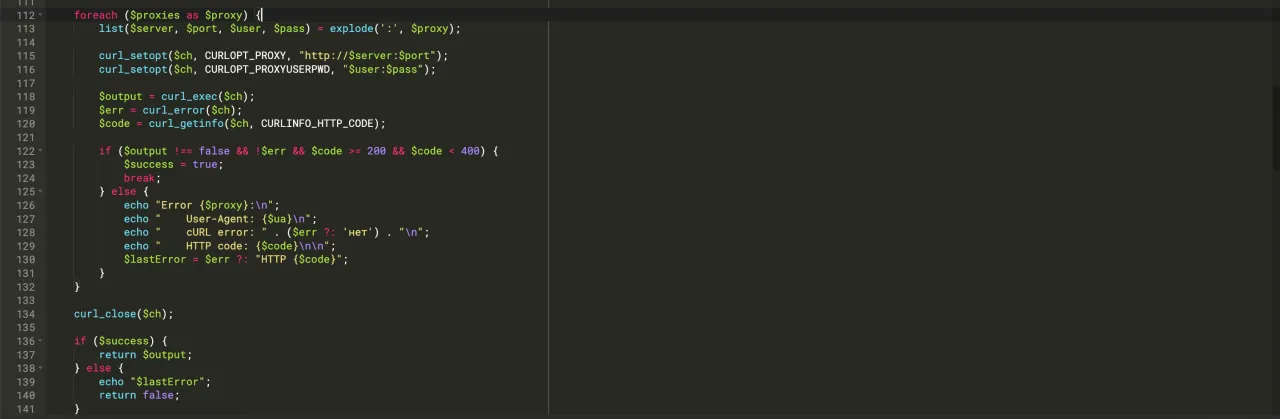
But we will not go deeper here, since there are many possible implementations and many programming languages. Developers can easily integrate proxies into their code, and this article is not intended for them.
Conclusion
Rotating residential proxies require initial setup before practical use. In this article, we walked through how to configure proxies step by step after purchase. As for adding proxies directly into your program or device, there should be no issues, since you simply enter the server (hostname), port, username, and password into the appropriate fields. If you still have questions, feel free to ask them in the comments.
FAQ
- What are rotating residential proxies?
- These are proxies where the IP changes over time, and the IPs belong to real users. Because of this, they look like normal traffic and are less likely to get blocked.
- How are they different from regular proxies?
- Regular proxies usually use one IP. Here the IP keeps changing, so it’s much easier to avoid blocks.
- What is a sticky session?
- It means the IP stays the same for some time. This is useful when you log into accounts or perform multiple actions in one session.
- When should I use IP rotation on every request?
- When you don’t care about keeping a session and just need high anonymity. For example, in large-scale scraping.
- Which protocol should I choose?
- If you’re not sure, go with SOCKS5. If you only work with websites, HTTP is also fine.
- What should I choose: mobile or residential proxies?
- Mobile proxies are harder to block, but they are slower and more expensive. Residential proxies are more balanced and used more often.
- Can I choose a country or city?
- Yes, in most cases you can choose a country, region, or even a city if needed.
- How does authentication work?
- Usually via username and password. Some providers also allow IP whitelisting.
- Do I need to regenerate proxies every time?
- Not always. In some cases, you can just change parameters directly in the proxy string.
- Where are these proxies used?
- In web scraping, automation tools, anti-detect browsers, and custom scripts.