Which promo code saves more
| Proxy type | Price without code | Best code | With code |
|---|---|---|---|
| Individual IPv6 Proxies | $0.14/IP/Month1 IP | CAPROXY −15% | $0.12/IP/Month |
| ISP Proxies | $2-2.7/IP/Month1 IP | CAPROXY −15% | $1.7-2.3/IP/Month |
| Dedicated Datacenter Proxies | $1.43-2.7/IP/Month1 IP | CAPROXY −15% | $1.22-2.3/IP/Month |
| Static Residential Proxies | $2.7/IP/Month1 IP | CAPROXY −15% | $2.3/IP/Month |
| Dedicated Mobile Proxies | $45.0-170.0/port/Month1 IP | CAPROXY −15% | $38.25-144.5/port/Month |
| Rotation Residential Proxies | $3.0/GBPay-as-you-go | CAPROXY −15% | $2.55/GB |
| Rotation Mobile Proxies | $45.0-100.0/MonthUnlimited | CAPROXY −15% | $38.25-85/Month |
Price of the smallest package in the provider’s price list.
Geonix https://geonix.com

Proxy Type
Mobile ProxiesResidential ProxiesIndividual IPv6 ProxiesISP ProxiesDatacenter ProxiesDedicated Datacenter ProxiesStatic Residential ProxiesDedicated Mobile ProxiesHow to Use a Promo Code in Geonix
Let’s go through a step by step guide on how to buy proxies with a promo code (coupon) from the proxy provider Geonix.
Step 1: Choosing the proxy type
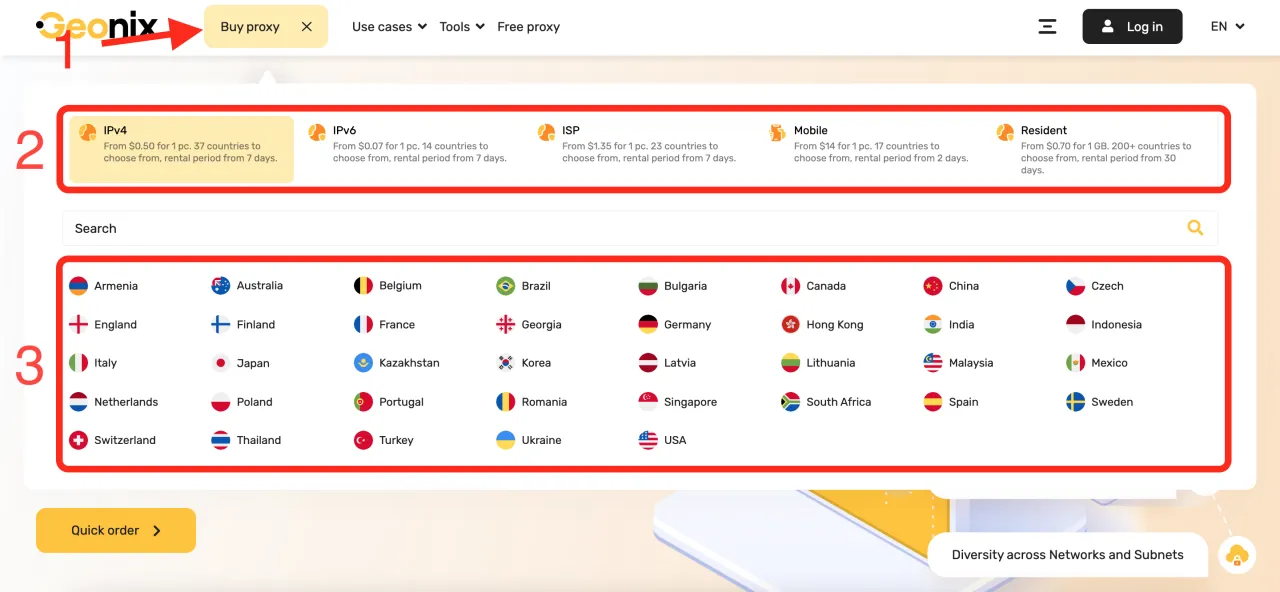
To buy proxies, next to the Geonix logo there is a "Buy proxy" button. Hover over this button and a menu will open where you need to select the proxy type and country. If you need residential proxies, then you do not need to select a country, since targeting will be available after the purchase.
Step 2: Choosing proxy parameters
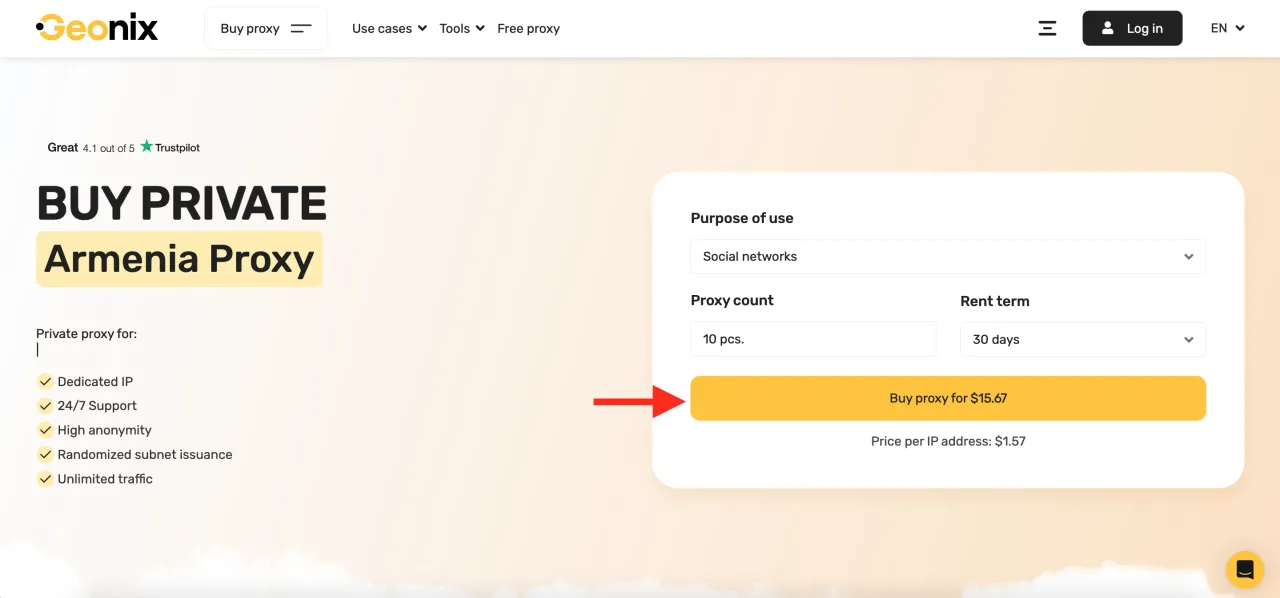
At this stage, you specify how many proxies you need, for what purposes, and for what period. Depending on the type of proxy, the parameters may vary, but they are standard.
Step 3: Adding a promo code to the order
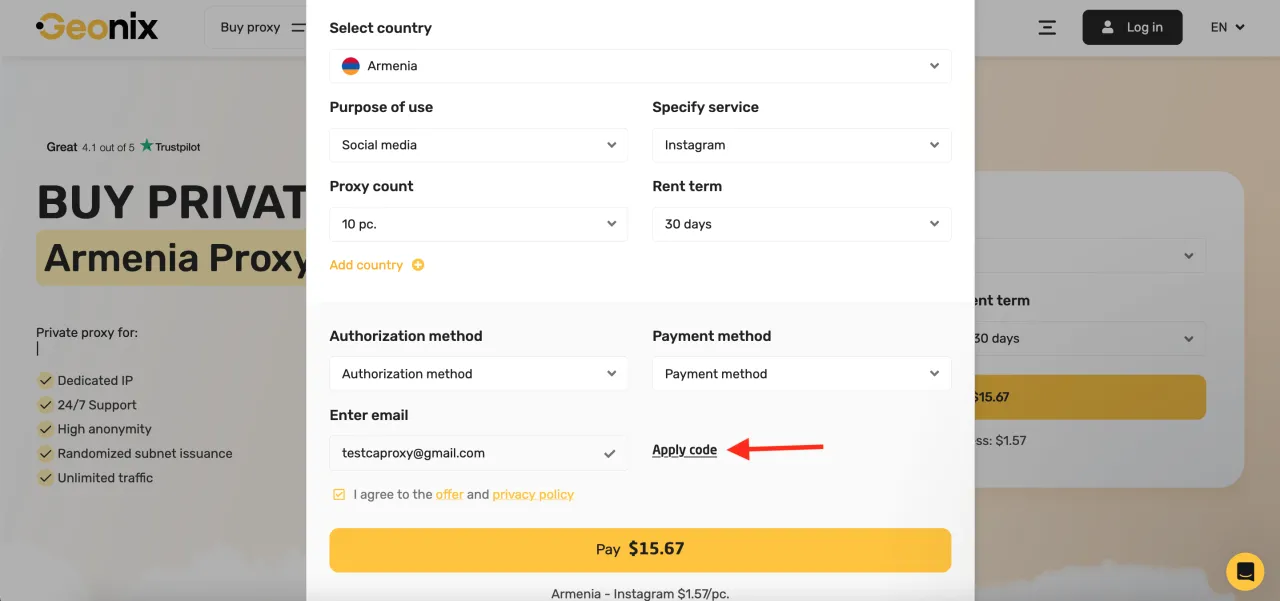
After you have selected the main parameters and clicked the proxy purchase button, an order checkout window will open. At this stage, you can already add a promo code for a discount.
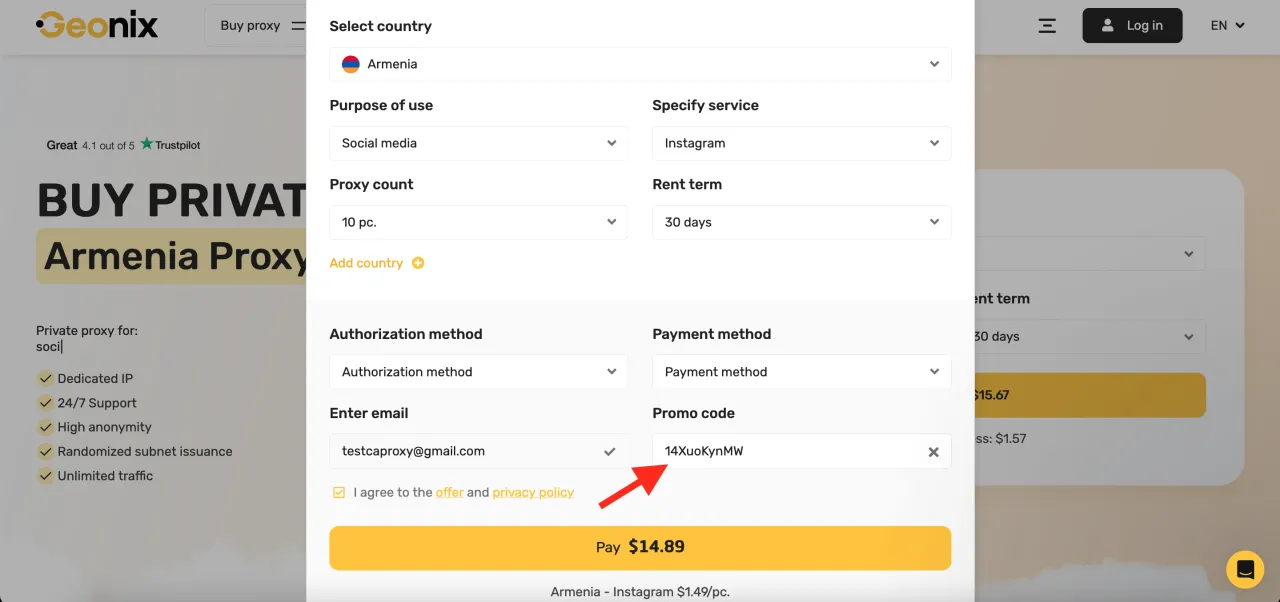
To add the promo code 14XuoKynMW and get a 5% discount, click on the text "Apply code" as shown in the screenshot below.
After clicking, a field for entering the promo code will open. Enter the promo code 14XuoKynMW and if nothing happens, simply click anywhere in the checkout window and the system will recalculate the final purchase amount. As you can see in the screenshot below, the promo code was successfully applied and a 5% discount was applied since the amount was $15.67 and then became $14.89.